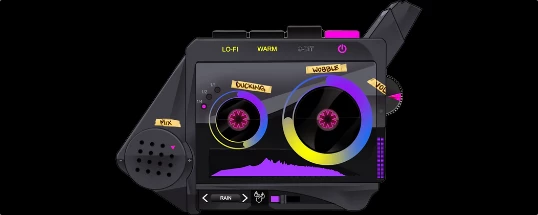
Curtiss King Tapeboy
Description
Curtiss King Tapeboy for Mac is the ultimate embodiment of the childhood Boom Bap dreams of the '90s. This all-in-one vintage cassette and vinyl emulator was inspired by the iconic portable TalkBoy recorder from Home Alone 2, now available for contemporary Mac-based producers. Effortlessly reviving the warmth and nostalgia of yesteryear’s vinyl and cassette atmospheres, this powerful effect plugin offers a wealth of features bespoke to today’s music creators.
Curtiss King Tapeboy plugin was engineered to inject precise, authentically classic hardware vibes into any melodic sample, vocal, or drum sound in your Mac setup.
BUILT-IN SOUNDS & ADVANCED LO-FI SFX MODE
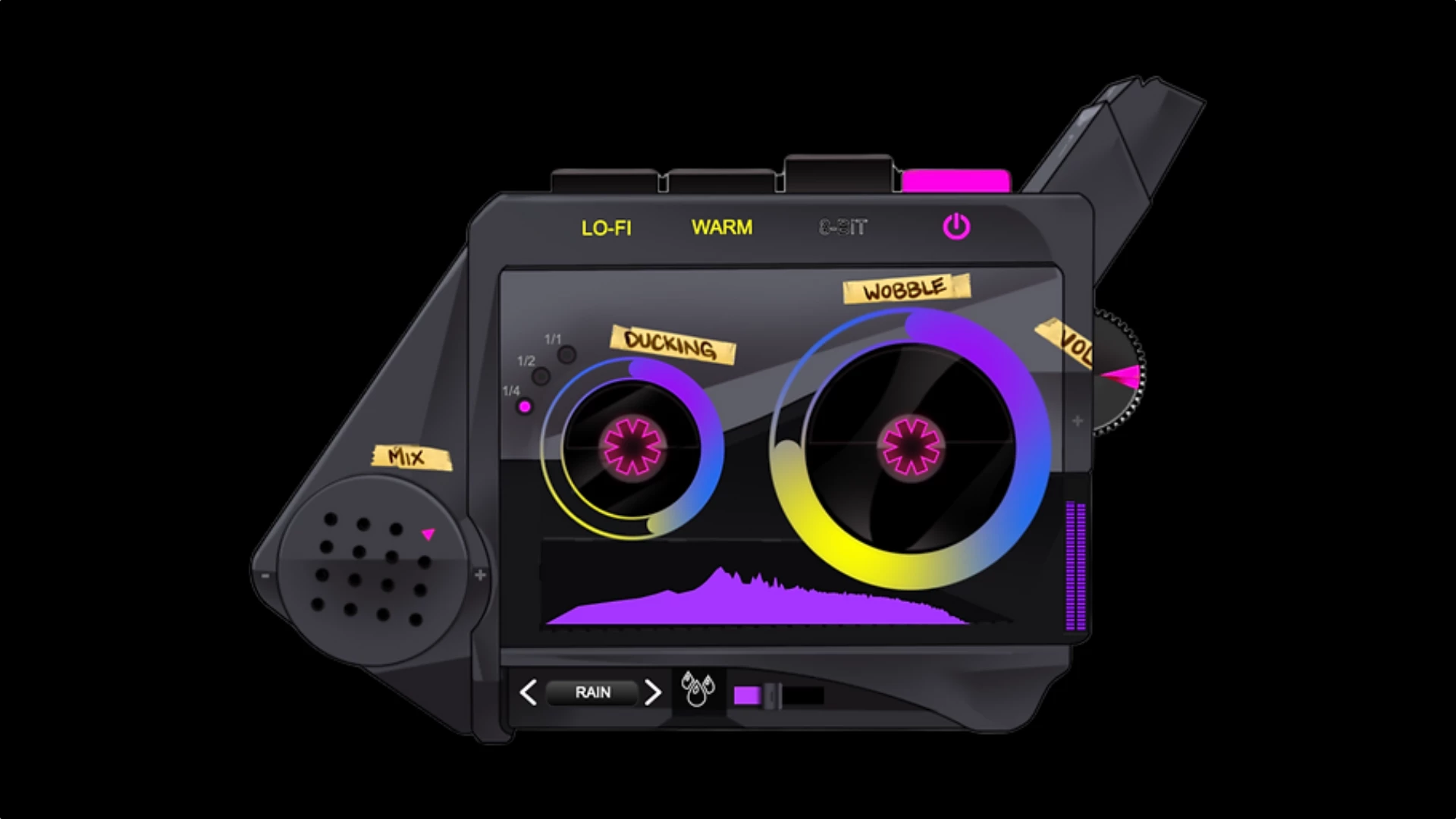
As producers, we understand the vital importance of environmental sound effects in our tracks. No longer will you need to disrupt your flow searching for quality samples to achieve the atmosphere you desire. With Tapeboy, you can select from 9 ambient SFX—ranging from classic vinyl crackle and soothing rain to relaxed coffee-shop chatter—to fully immerse listeners in your creative universe.
LO-FI SYNC BUTTON
Our latest Mac update brings you new flexibility: not only can you set the exact volume for your environmental effects, but you can also choose to sync them perfectly with your audio or let them float independently for more creative control.
WARMTH & 8-BIT FLEXIBILITY
The Echo section in Curtiss King Tapeboy plugin is designed to give you unparalleled sonic flexibility while keeping the workflow on Mac fast and intuitive. Explore the rich world of echo, from crisp slapback delays to lush, analog-inspired echo tones.
ANALOG WARMTH MODE
Add and tailor numerous flavors of analog warmth and presence to your samples with the dedicated WARMTH mode button, dialing in anything from gentle saturation to classic tape texture.
ADVANCED 8-BIT MODE
Want to inject your samples with classic video game crunch or sharp digital edge? Activate Advanced Tapeboy 8-Bit and sculpt the perfect retro digital distortion for your Mac productions.
WOBBLE & DUCKING
WOBBLE WHEEL
With the intuitive wobble wheel, control exactly how much digital pitch variation you apply to your samples—perfect for adding subtle motion or wild, warbly effects.
SIDECHAIN DUCKING
Rare among tape emulators, curtiss king tapeboy mac introduces true sidechain-style ducking speed control. Set not only the degree but also the speed of ducking you want applied to your samples—choose from 1/2, 1/4, or 1/1 settings for precise rhythmic interplay in your Mac workflow.
EQ FILTERS FOR LOWS/HIGHS
Easily remove or automate low and high-frequency bands from your audio using the built-in EQ filters—just dial left or right to sculpt your sound in real time.
MIX & OUTPUT
Curtiss King Tapeboy plugin for Mac gives you streamlined control over the amount of cassette emulation in your music via the convenient Mix knob in the lower left. Finally, dial in the exact output gain for your finished masterpiece using the master volume wheel on the right.
SKINS & TONES
The latest Tapeboy update for Mac introduces vibrant new plugin skins. But don’t be fooled—each skin brings not just visual flair but its own unique sound character and tonal color, effectively offering multiple versions of Tapeboy in one. This opens up virtually endless creative combinations and possibilities for your Mac projects.
PRESETS
In the newest Tapeboy Mac edition, we went all-in on presets. We know that audio inspiration breeds more inspiration, so we included a selection of preset categories designed to help you quickly achieve various cassette emulation styles. Combined with the array of selectable skins, these presets will surely inspire sounds that are truly yours.
MENU
The Tapeboy menu section houses additional controls and tools that streamline and enliven your workflow on Mac. But this is not just any menu—hidden gems are waiting to be discovered!
UNDO/REDO
Curtiss King Tapeboy remembers every move, allowing you to undo or redo actions at the touch of a button. Feel free to experiment and innovate, secure in the knowledge that your workflow is always backed up.
ACHIEVEMENTS
A signature feature of Curtiss King plugins: you get rewarded simply for doing what you love—composing and creating. Unlock a dedicated set of in-plugin achievements and build your own creative streak!
SETTINGS
Need to adjust screen size or get fast help? Simply click the settings icon for a comprehensive range of Mac plugin scaling options, or tap the Help icon to chat directly with our 24/7 support team, always ready to ensure you have exactly what you need.
Frequently Asked Questions
You May Also Like
Reviews & Comments
No comments yet. Be the first to share your thoughts!