
Excite Audio Lifeline Console
Description
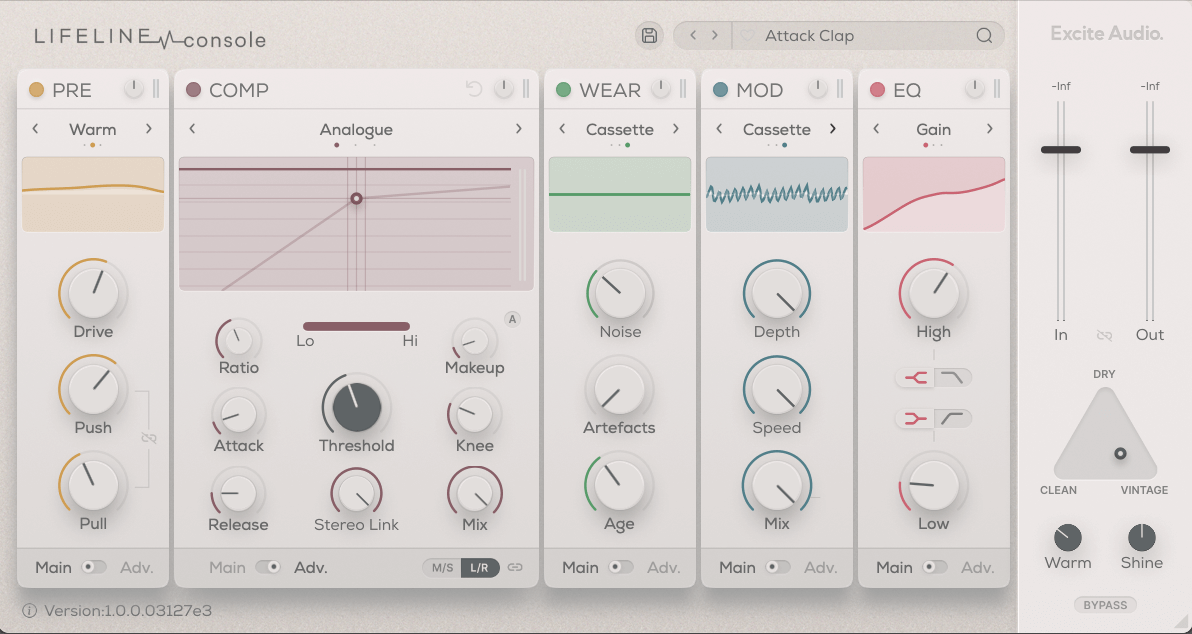
Excite Audio Lifeline Console is a powerful channel strip plugin for Mac that consists of five distinct effect modules, offering a user-definable signal path to maximize creative control. In practical terms, you can simply drag and drop any individual module to any position within the signal chain, adjusting the order in real-time. This flexibility sets the excite audio lifeline console apart from many other plugins in its category.
Between the five modules, there are fifteen unique internal algorithms, yielding an impressive total of 243 possible effect combinations. This vast range brings all the versatility needed for modern production on macOS, ensuring that excite audio lifeline console mac serves as both a comprehensive toolbox and a source of unique inspiration.
The plugin is designed for broad appeal, going well beyond many classic channel strip emulations by delivering both vintage character and modern tones without being limited to a single sonic flavor. More than 300 factory presets are included out of the box, and thanks to the plugin’s intuitive workflow, creating custom presets for a wide variety of genres or musical styles is straightforward for any user, novice or experienced.
Factory presets cover expertly tailored starting points for bass, guitar, keyboards, drums, vocals, master output, and much more—making it easy to get superb results instantly on Mac systems.
The flexible interface introduces several workflow-friendly features to keep sessions organized and efficient. Each of the five modules provides both a main and an additional “Advanced” page, the latter revealing much deeper controls when needed. By displaying advanced settings only when required, the interface remains clean and uncluttered, supporting a smoother and more focused creative process. Every module is equipped with its own independent volume control and a convenient reset feature that double-clicks all parameters back to their default values.
Another notable detail of excite audio lifeline console plugin is that each module supports both L/R (Left/Right) and M/S (Mid/Side) processing. In L/R mode, the channels are linked by default, but unlinking them enables separate control over the left and right channels, unlocking detailed stereo sculpting. The same flexible routing applies to the M/S processing mode, ensuring no creative compromise. For anyone looking for the most versatile and adaptable channel strip plugin for Mac, the excite audio lifeline console download provides endless possibilities.
Frequently Asked Questions
You May Also Like
Reviews & Comments
No comments yet. Be the first to share your thoughts!