
Fedora
Description
Fedora is one of the most popular GNU/Linux distributions, and it has earned recognition among Mac users as a reliable, versatile system with roots in innovation. Sponsored by Red Hat and maintained by a passionate community, Fedora derives its name from the stylish felt fedora hat—a symbol of its unique identity and cutting-edge spirit. The project's main objective is to provide a platform for testing and introducing new technological advancements, many of which are later adopted by Red Hat products and other software developers in the open-source sphere. Unlike direct corporate support models, Fedora users—especially those on Mac hardware—receive assistance through the collaborative and responsive open-source community.
Fedora strives to develop a complete, cohesive operating system based solely on free and open-source software, making it an attractive choice for Mac users pursuing flexibility and reliability. New Fedora releases are scheduled every six to eight months, ensuring timely access to the latest innovations while following a well-established release cycle. For those running Mac laptops and desktop computers, Fedora Workstation delivers a robust and consumer-friendly operating system environment. Since it’s based on Red Hat Linux, Fedora utilizes the RPM package manager, simplifying the installation, upgrade, and removal of packages on your Mac.
Distributed as Live Images
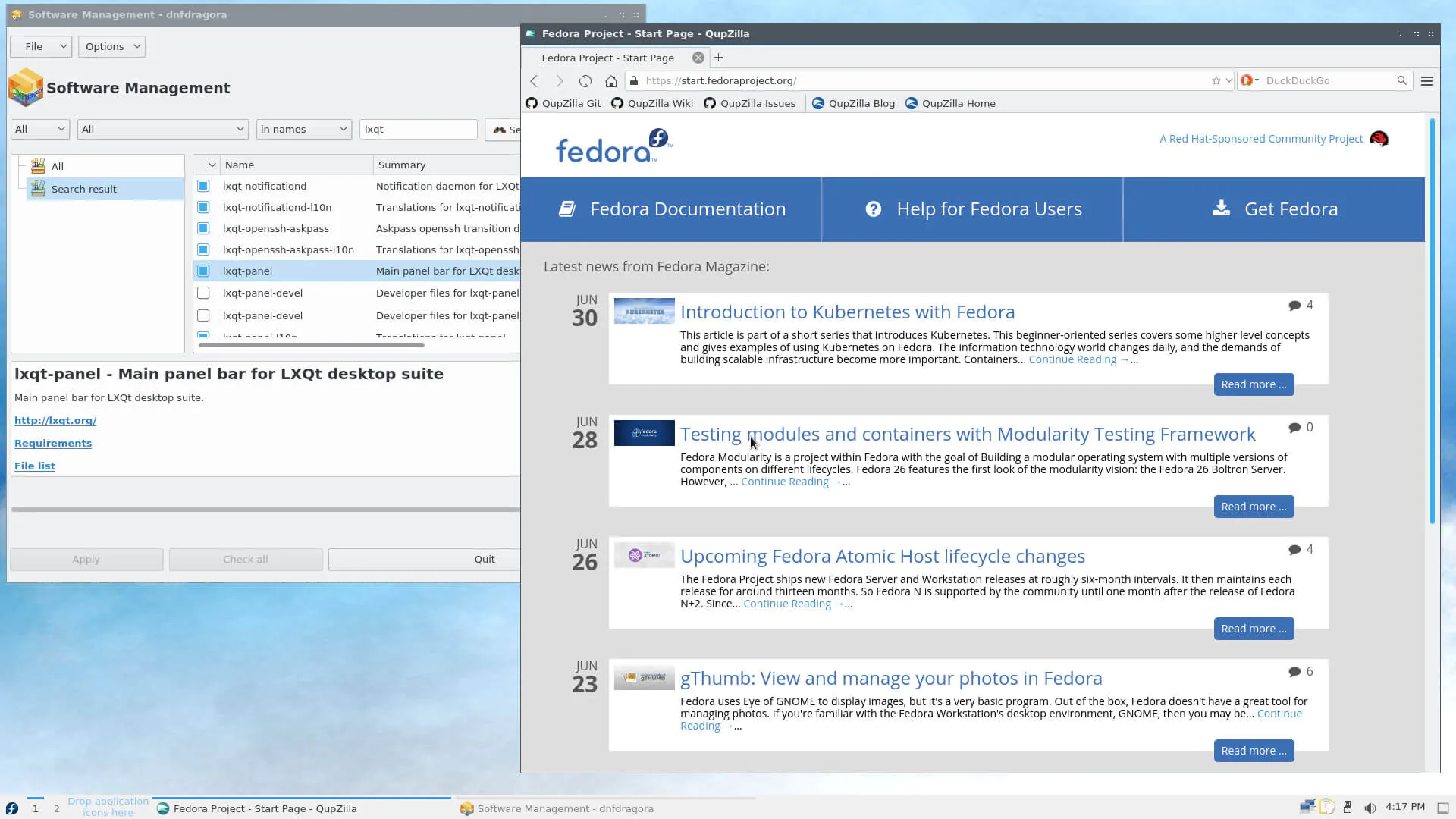
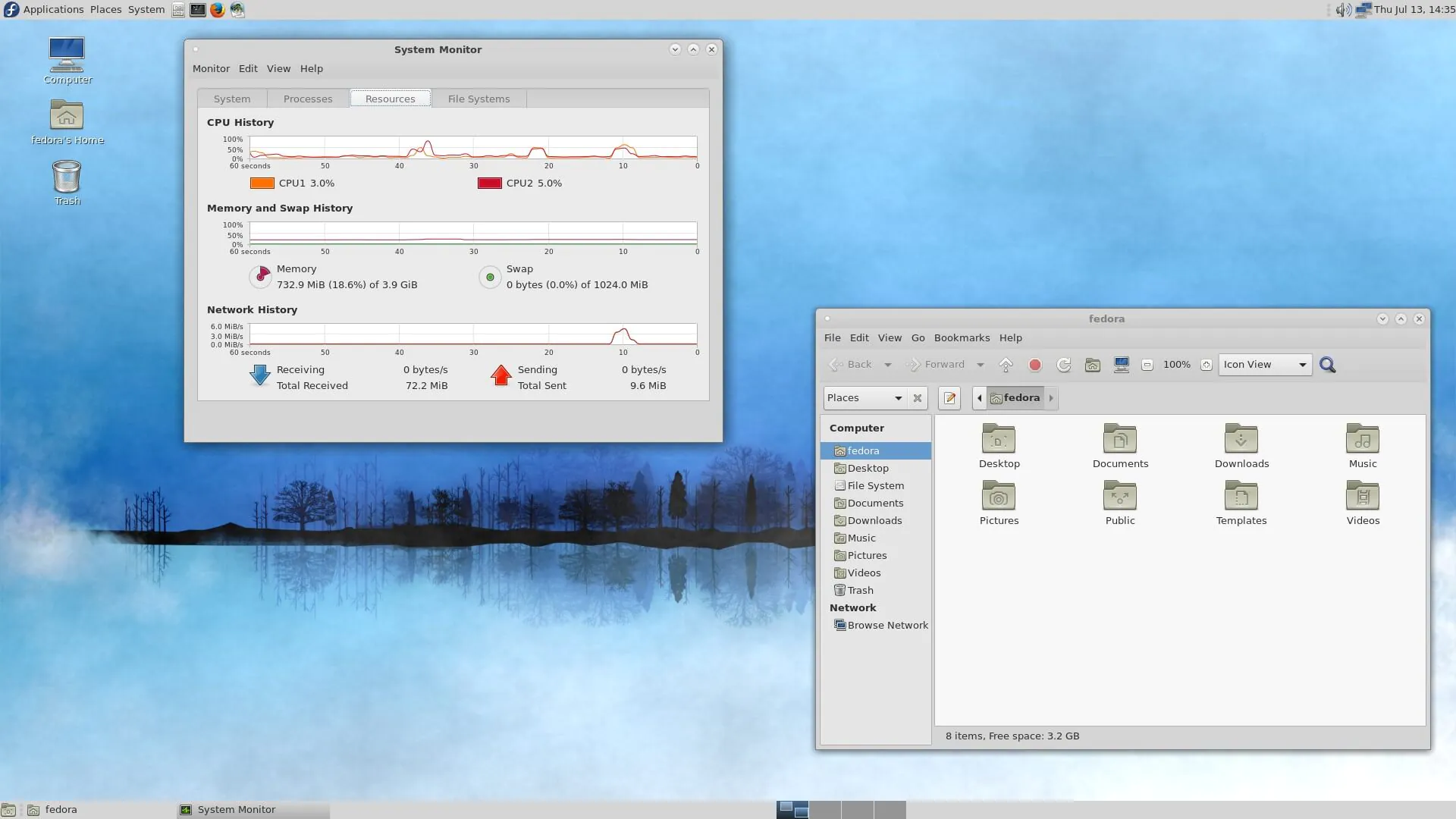
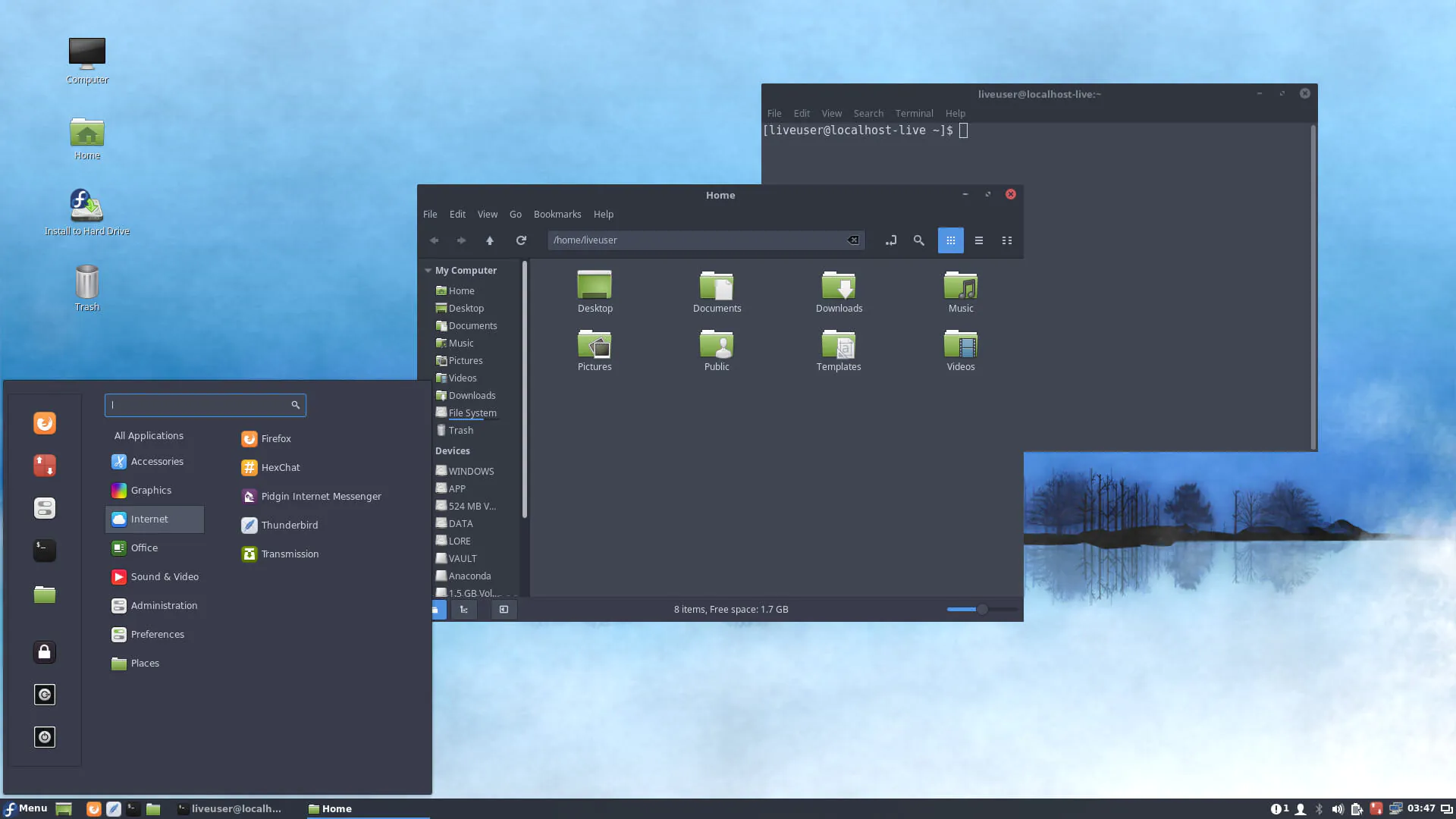
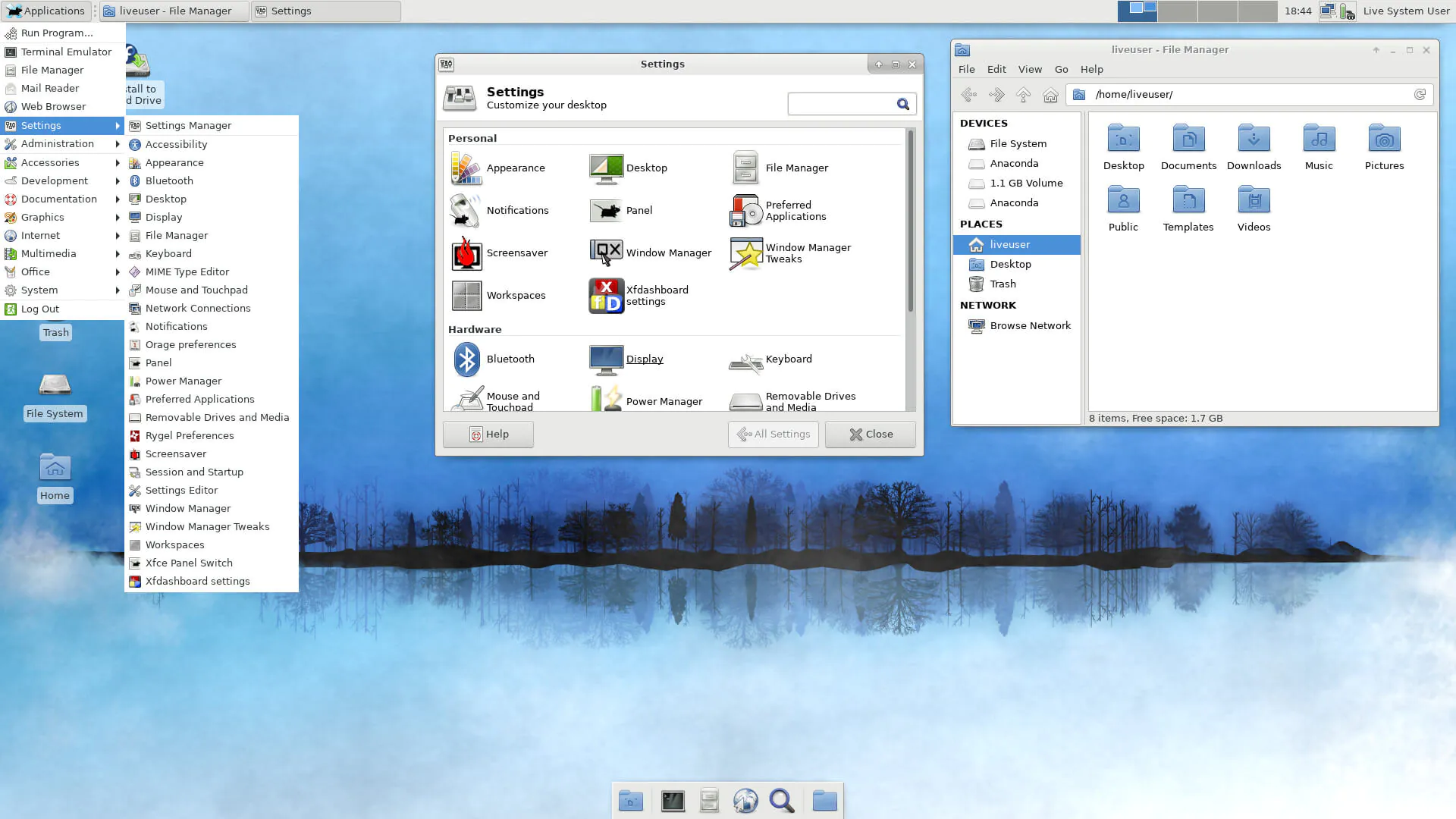
- Fedora is available as a Live DVD ISO image for installation on Mac, along with Live CD images tailored to a range of variants (such as netinstall for network-based setups). Comprehensive ISO images with all distribution sources and installable DVDs are available for download. Each DVD contains a selection of desktop environments maintained by Fedora, including GNOME, KDE, Xfce, LXDE, and MATE, making it easy to choose the best interface for your Mac.
Boot Options
- The Fedora Linux boot medium for Mac not only allows users to install the newest Fedora release, but also supports system recovery, memory testing, booting from the local Mac disk, and installing Fedora in a safe graphical mode. These options ensure that Mac users have the flexibility and troubleshooting tools necessary for any scenario.
Straightforward and Intuitive Installation Process
- Fedora’s installation wizard is both modern and intelligent, making it easy for Mac users of all experience levels. The process is streamlined and user-centric: the installer automatically recognizes most Mac hardware, then presents users with a comprehensive summary screen before proceeding. From this summary screen, you can configure the date and time, keyboard layout, language, network settings, installation source, desktop environment, desired applications, and disk partitioning for optimal Mac compatibility.
Afterward, you can set up the root (system administrator) account, specify a password, and create a new user account. With those settings complete, Fedora finishes unpacking files from the boot medium and will notify you when it is time to restart your Mac and start using the new Fedora environment.
One of the Most Influential Systems
- Fedora Linux stands out as one of the most influential operating systems within the open-source ecosystem, especially admired by the Mac community. Fedora can be deployed on virtually any hardware, including all generations of Mac computers, allowing power users and newcomers alike to personalize and fine-tune their systems to match their needs.
Frequently Asked Questions
You May Also Like
Reviews & Comments
No comments yet. Be the first to share your thoughts!