
Default Folder
Description
The standard "Open" and "Save" dialog boxes included by default in macOS offer only a limited range of customization options. Default Folder X is a compact yet powerful utility designed to help you fully personalize the entire file management process, adding new locations, Spotlight tags, comments, and a wide variety of other useful parameters for a more efficient workflow.
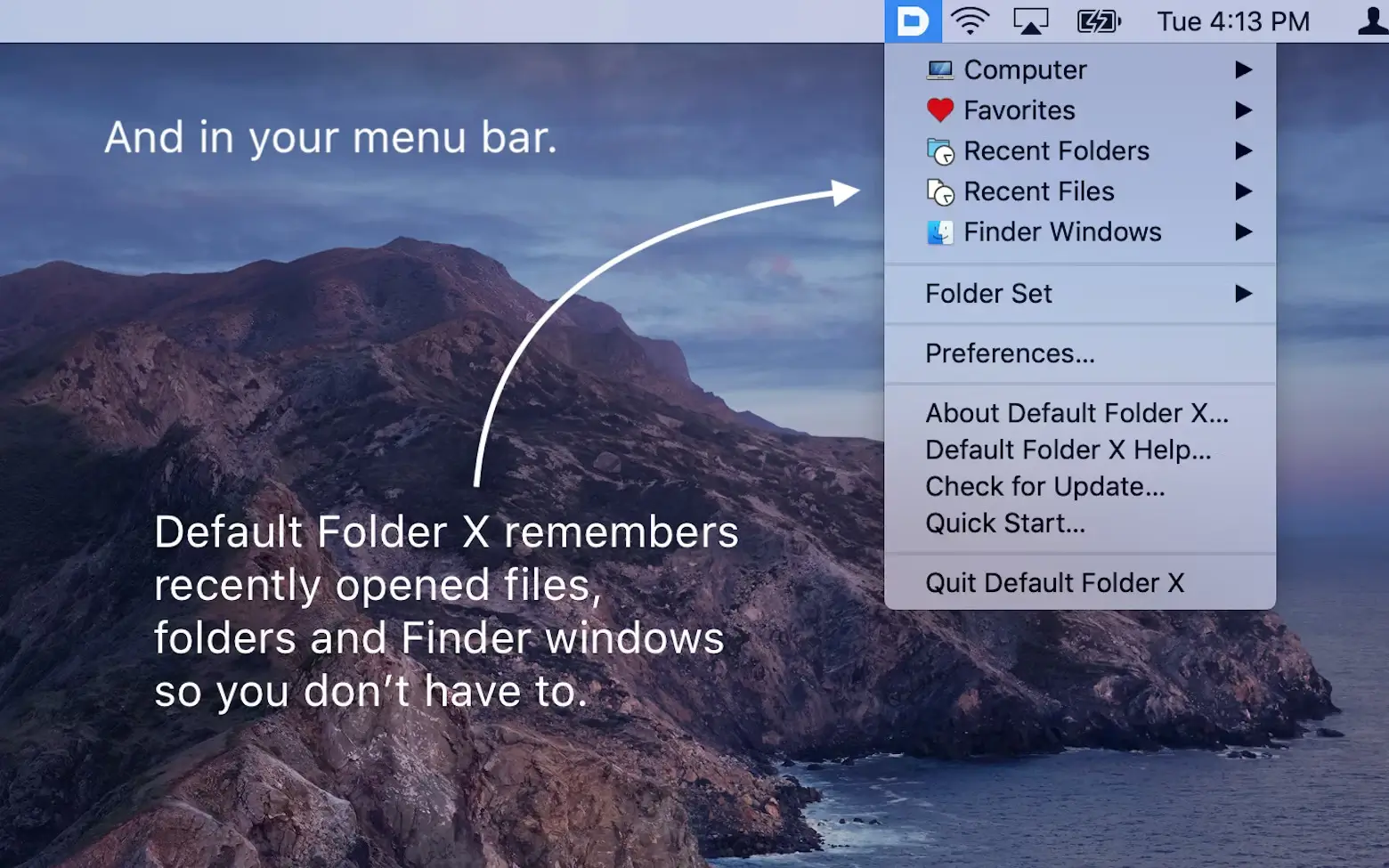
Effortlessly access your favorite folders from the menu bar and build custom folder lists. The Default Folder X menu bar offers a convenient gateway to your default folders, favorites, and recent folders. At the same time, the menu bar menu also lets you view all open Finder windows and bring any of them to the foreground, streamlining your navigation on your Mac.
With Default Folder X, configuration is straightforward. The utility adds a settings panel directly to your System Settings, where you can specify certain directories to act as default locations for specific applications. Additionally, you are able to create a personalized list of favorite folders, making the default folder app integral to your daily file management routine.
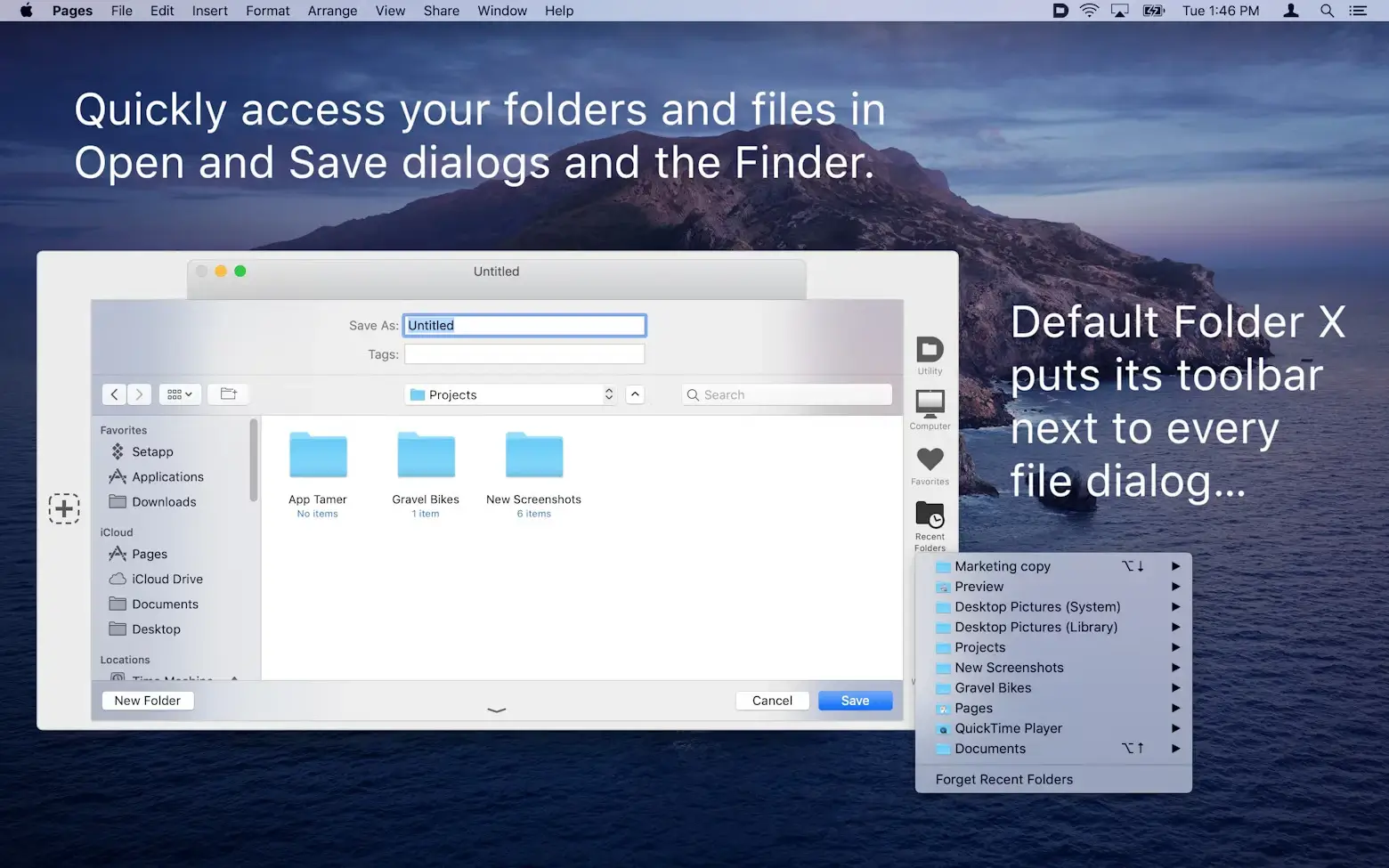
Open and Save dialog enhancements: Whenever Default Folder X is active, every time you attempt to save or open a file using the built-in macOS utility, the app adds a toolbar that makes accessing all these additional options much easier and more intuitive.
Navigating between different menus is as simple as hovering your cursor over them, but you can also utilize customizable keyboard shortcuts, which are assigned by default for frequently used functions. This makes the Default Folder X experience not only powerful but user-friendly as well.
Integrated Spotlight and QuickLook features: To ensure you can always locate your files as quickly as possible, Default Folder X enables you to append keywords, tags, comments, or Spotlight labels right from the Save dialog. This level of integration helps you organize files more efficiently across your Mac.
Additionally, when opening files, Default Folder X makes it possible to preview documents as thumbnails or even at their full size, enhancing your ability to identify and select the right documents instantly.
An intuitive solution for customizing your default Open and Save dialog boxes. Default Folder X provides straightforward tools for tailoring your experience when opening or saving files on your Mac. Focused on efficiency, the app will undoubtedly improve your workflow and make managing files in macOS easier and faster. The default folder download, along with the options found in the default folder mac, allow you to maximize organization and convenience without compromising usability.
Frequently Asked Questions
You May Also Like
Reviews & Comments
No comments yet. Be the first to share your thoughts!