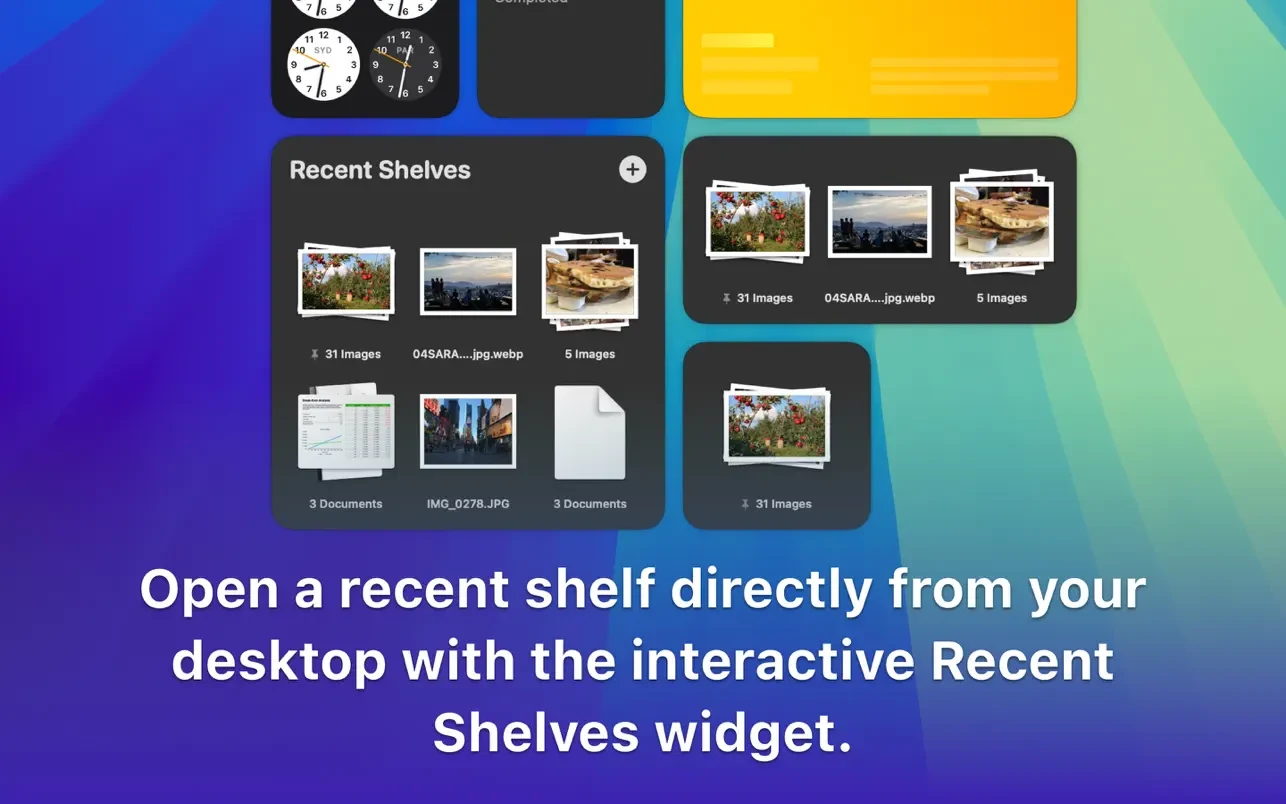
Description
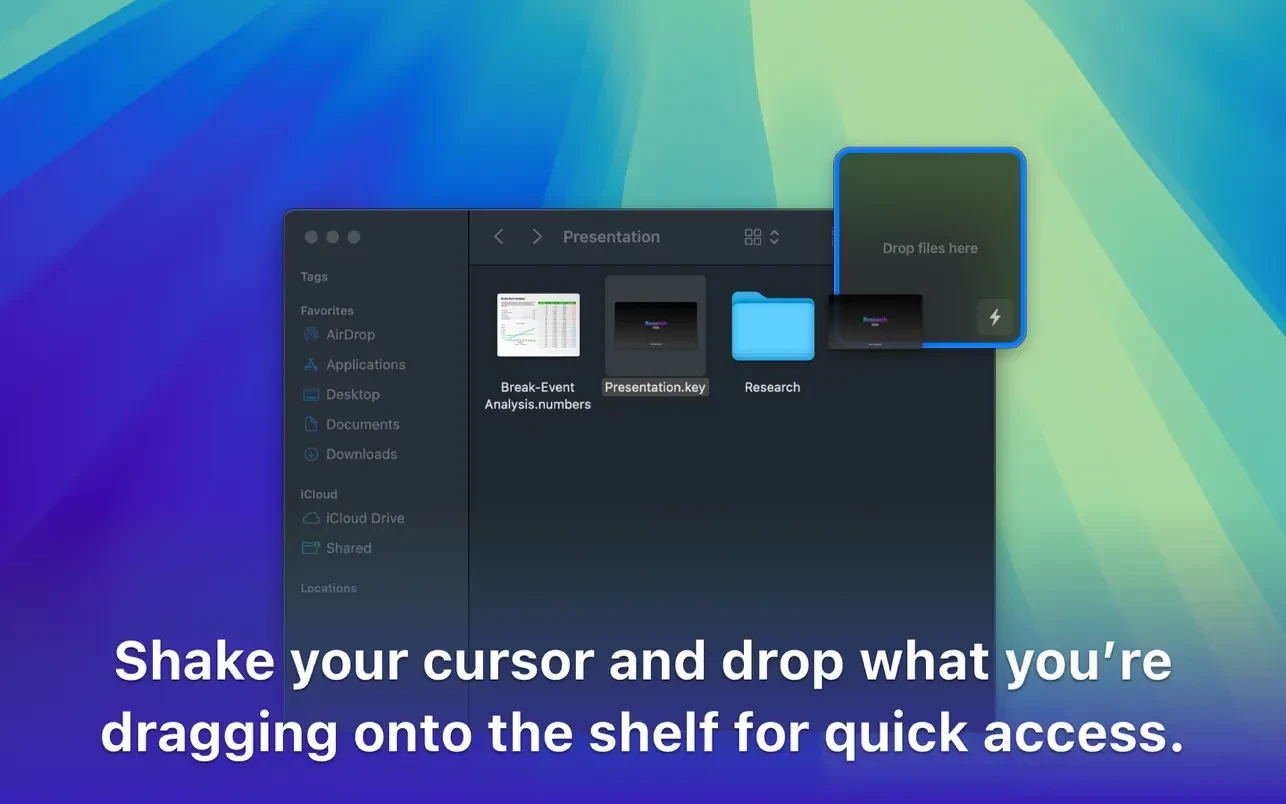
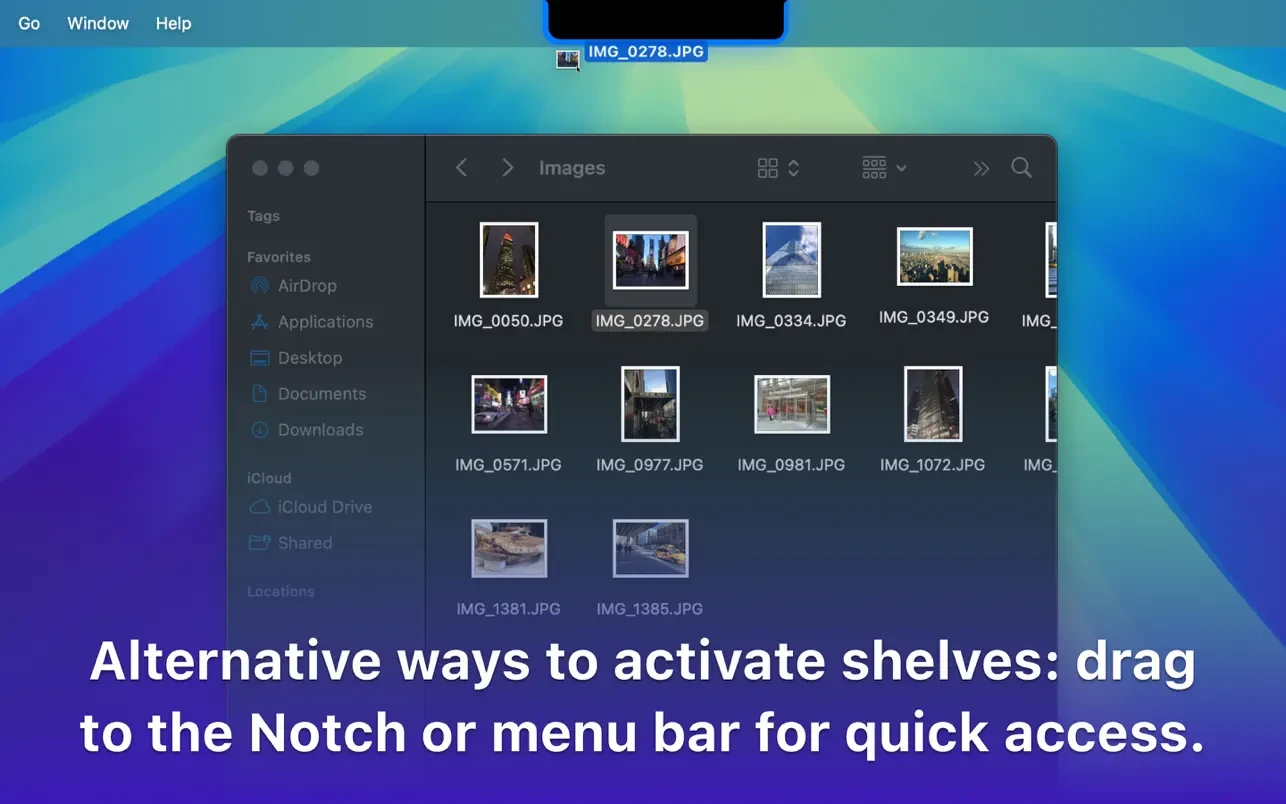
Dropover is a versatile utility designed specifically for Mac users that streamlines the process of dragging, dropping, and organizing files, folders, and other items within your workspace. With Dropover, a temporary “zone” is created directly on your screen, allowing you to simply drag and drop files into it so you can keep them within easy reach while focusing on other windows or applications.
Temporary File Storage:
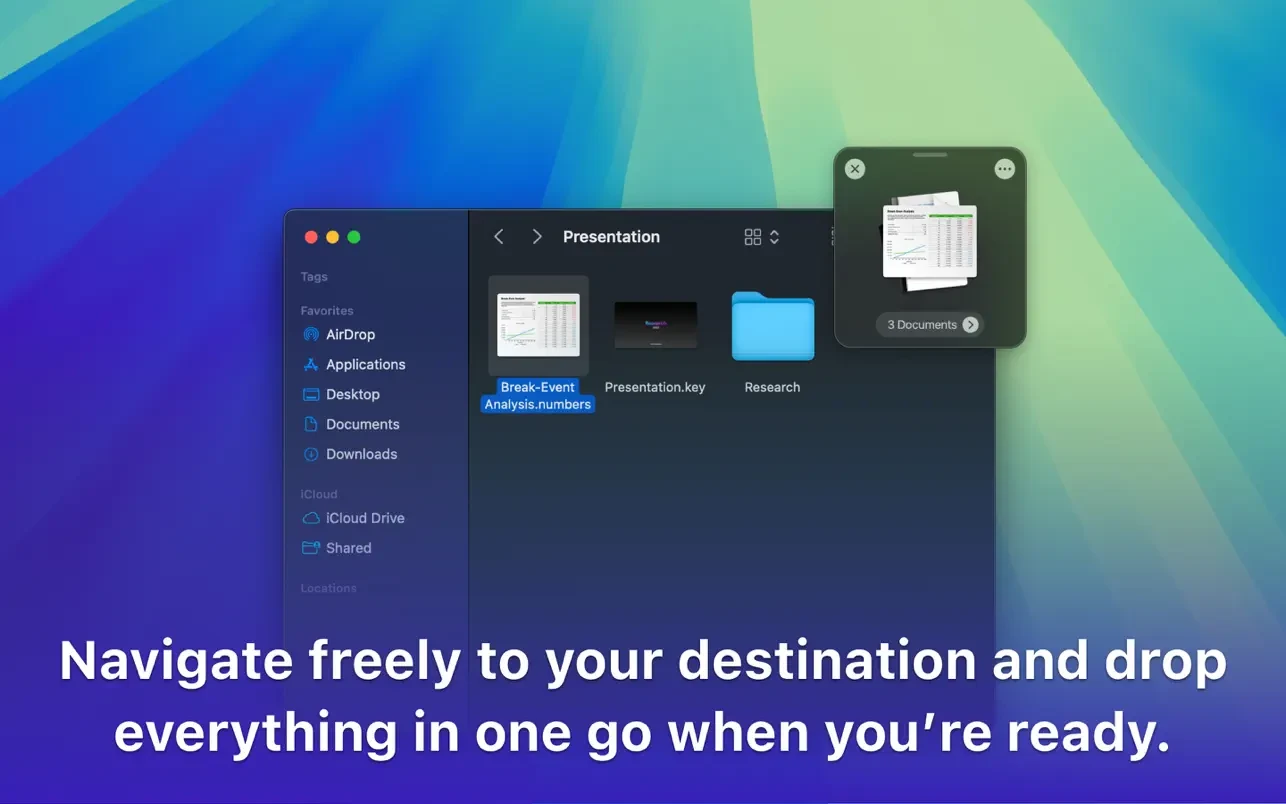
When you drag files into the Dropover zone, they stay conveniently stored there until you’re ready to use them. This feature proves especially handy when you’re juggling multiple apps or windows, making complicated workflows seamless and efficient on your Mac.
Easy Organization:
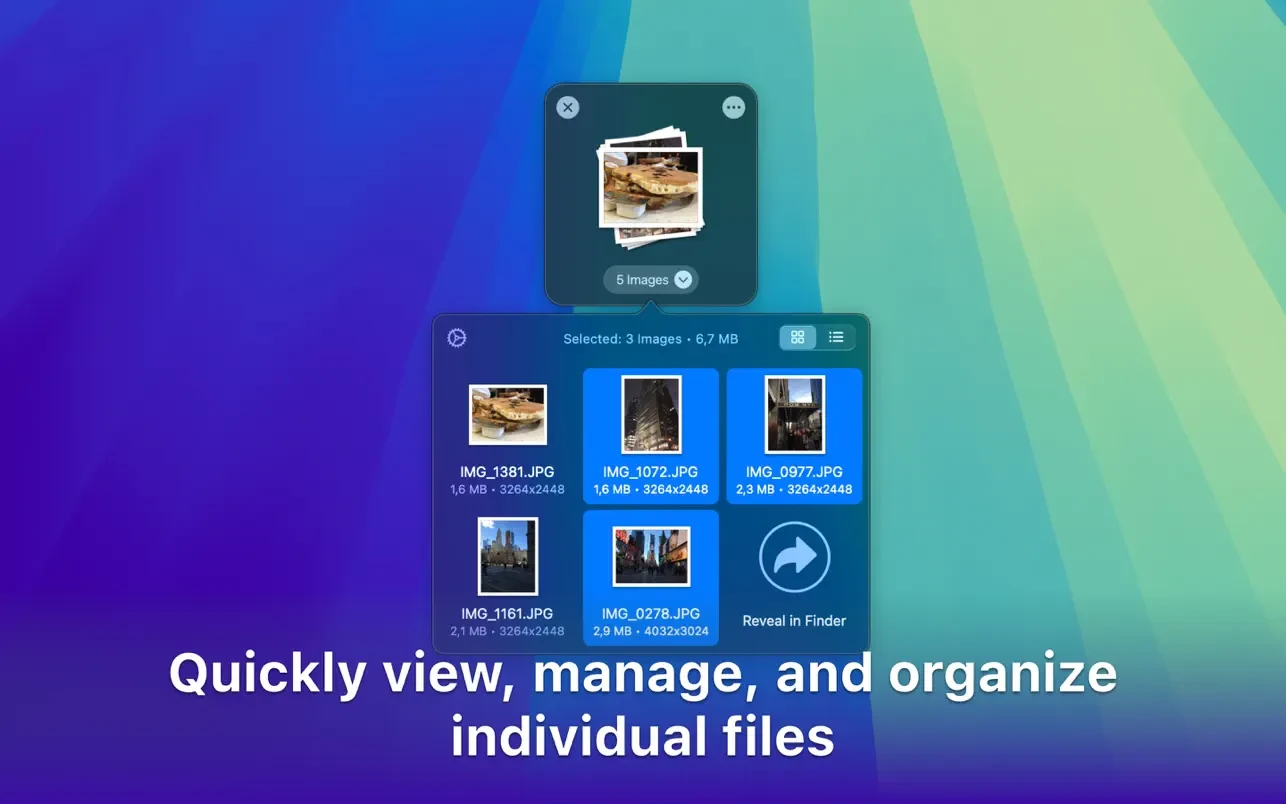
Within the Dropover zone, you can group files together, making it simple to sort and arrange them before performing further actions like copying, moving, or uploading. Dropover mac helps organize large collections of files without losing track of your workflow.
Quick Actions:
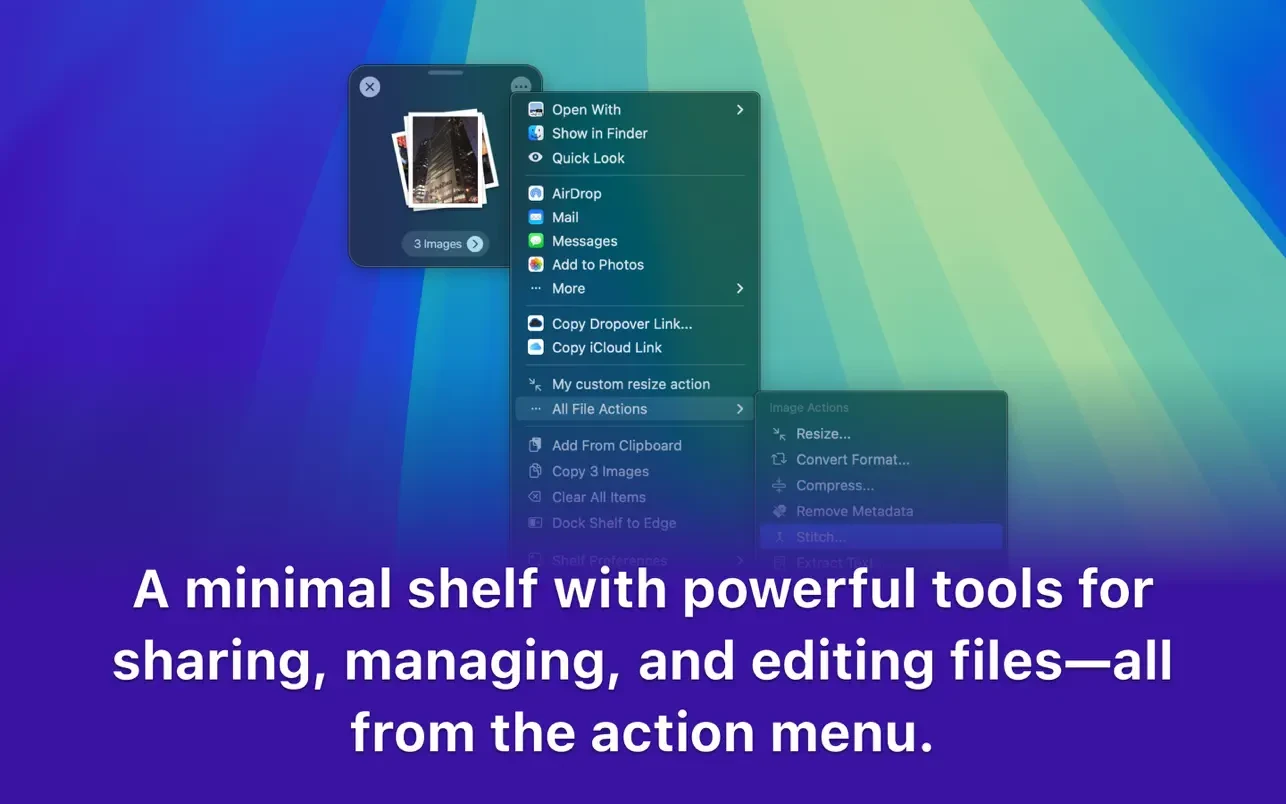
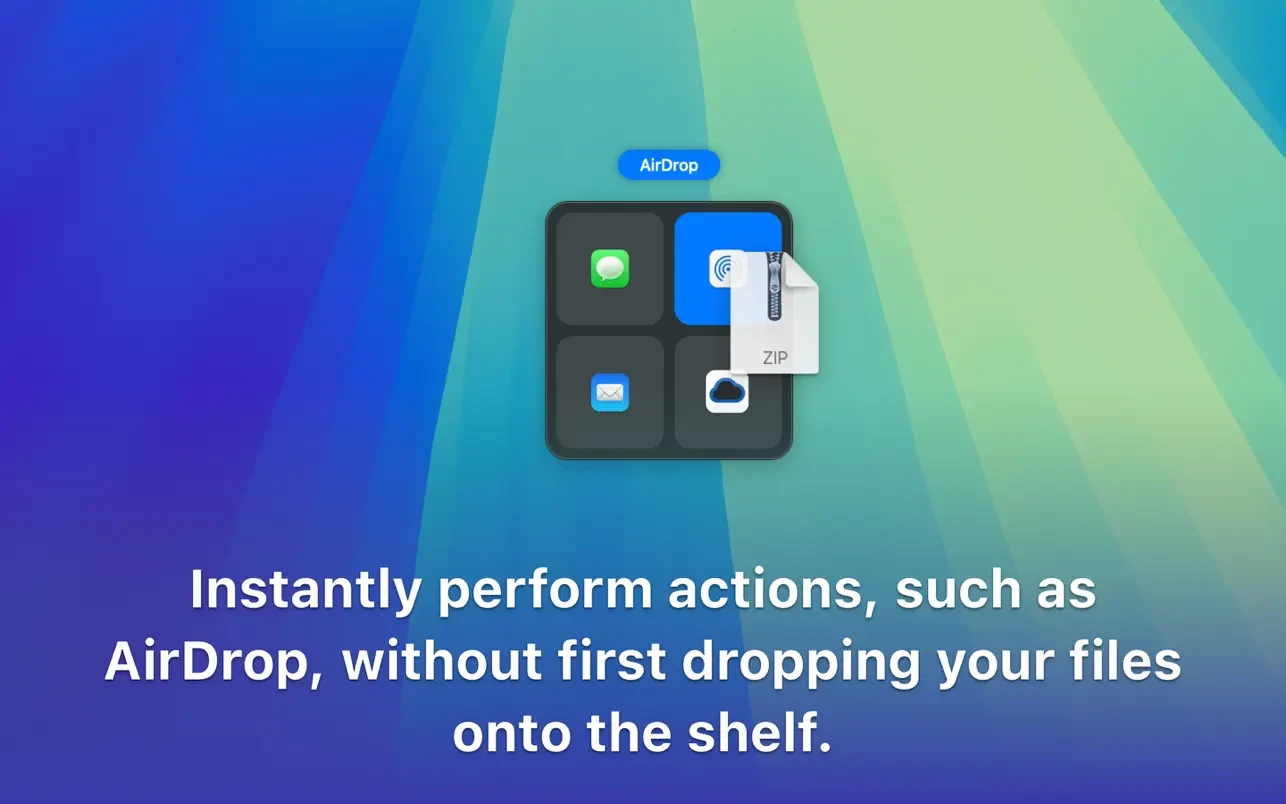
Dropover enables direct actions with files inside the zone, such as archiving, renaming, or sharing. This eliminates the need to switch between apps or folders, making file management more efficient and letting you work smarter with Dropover app.
Integration with Other Services:
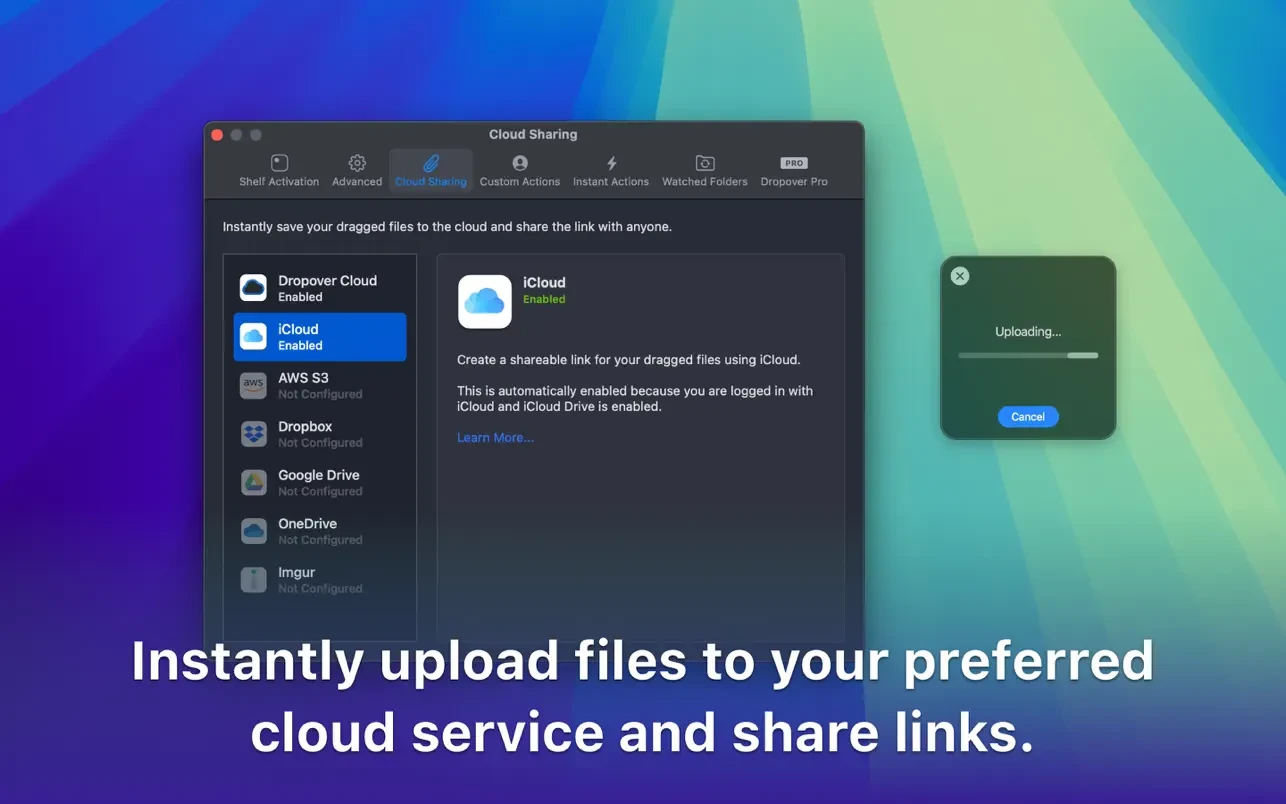
This utility also boasts integration with major cloud services like Google Drive, Dropbox, and more. Thanks to Dropover, uploading files to your favorite cloud platform is faster and easier, so you waste no time managing important data between local and online storage.
Flexible Customization:
Personalize the Dropover experience by adjusting the appearance of the zone, including its size, opacity, and screen location. This ensures the Dropover zone fits perfectly into your desktop environment with minimal disruption.
Hotkey Support:
For enhanced productivity, Dropover supports handy hotkeys, enabling faster access to all its features and allowing you to navigate, organize, and manage your files with maximum speed and ease.
Benefits of Dropover:
- Simplifies multitasking by keeping your files at hand right on your Mac.
- Saves valuable time when handling large numbers of files.
- Offers an intuitive, easy-to-learn interface designed exclusively for Mac workflows.
Dropover is the ideal tool for professionals and users who frequently work with files and seek to optimize their workflow on Mac devices. Make your workspace smarter and improve your file management with Dropover download today.
Frequently Asked Questions
You May Also Like
Reviews & Comments
No comments yet. Be the first to share your thoughts!