
FotoMagico
Description
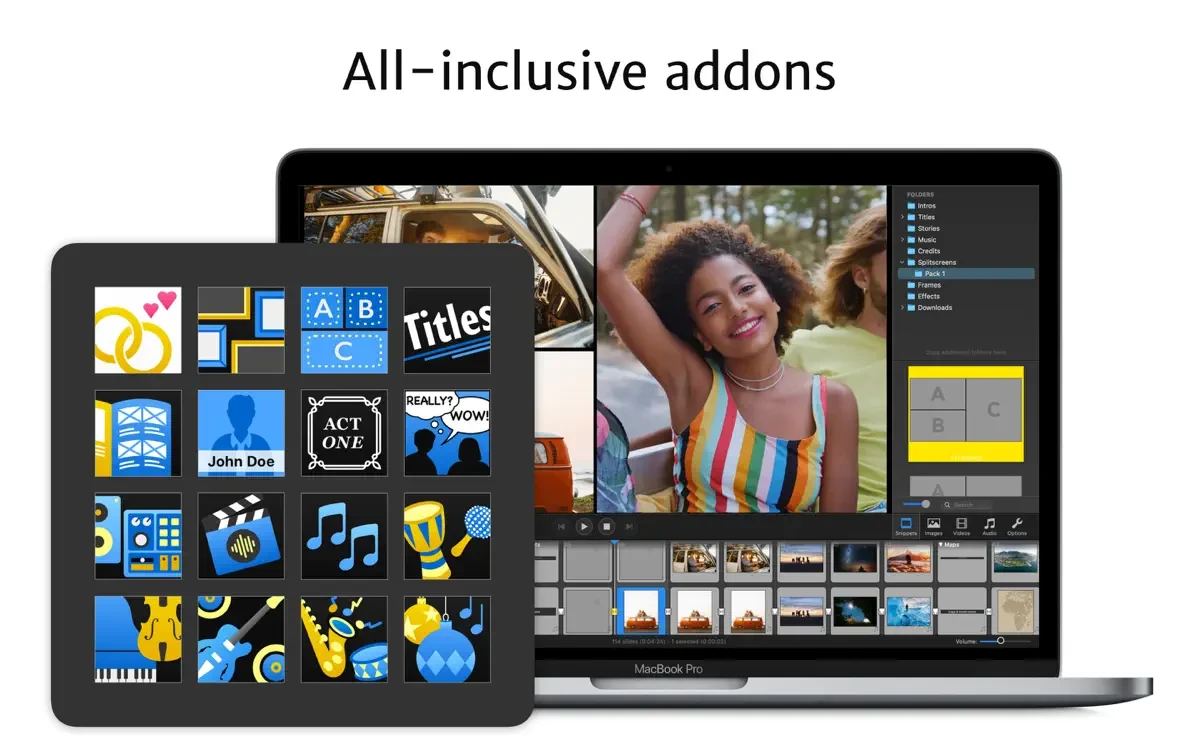
FotoMagico is a real-time slideshow editor for Mac that lets you instantly play slideshows in full resolution, without wasting any time on rendering. Innovative Instagram presets make it easy to create engaging vertical Instagram Stories directly from your project. FotoMagico 6 comes packed with a curated selection of add-ons—including music, titles, frames, and unique storytelling prompts—that will transform your next slideshow into the best slideshow experience of your life. This all-in-one solution includes both current and future add-ons*, all available for direct fotomagico download inside the new in-app Download Manager. Discover new creative image and video filters, plus the Map Assistant, which is designed to let you visualize and animate your travel routes with stunning effects.
Included with the software is a standalone player, enabling you to view high-resolution slideshows even on computers that do not have the FotoMagico suite installed—something previously only possible by exporting your slideshow as a video, often forcing you to choose between higher resolution and smaller file sizes.
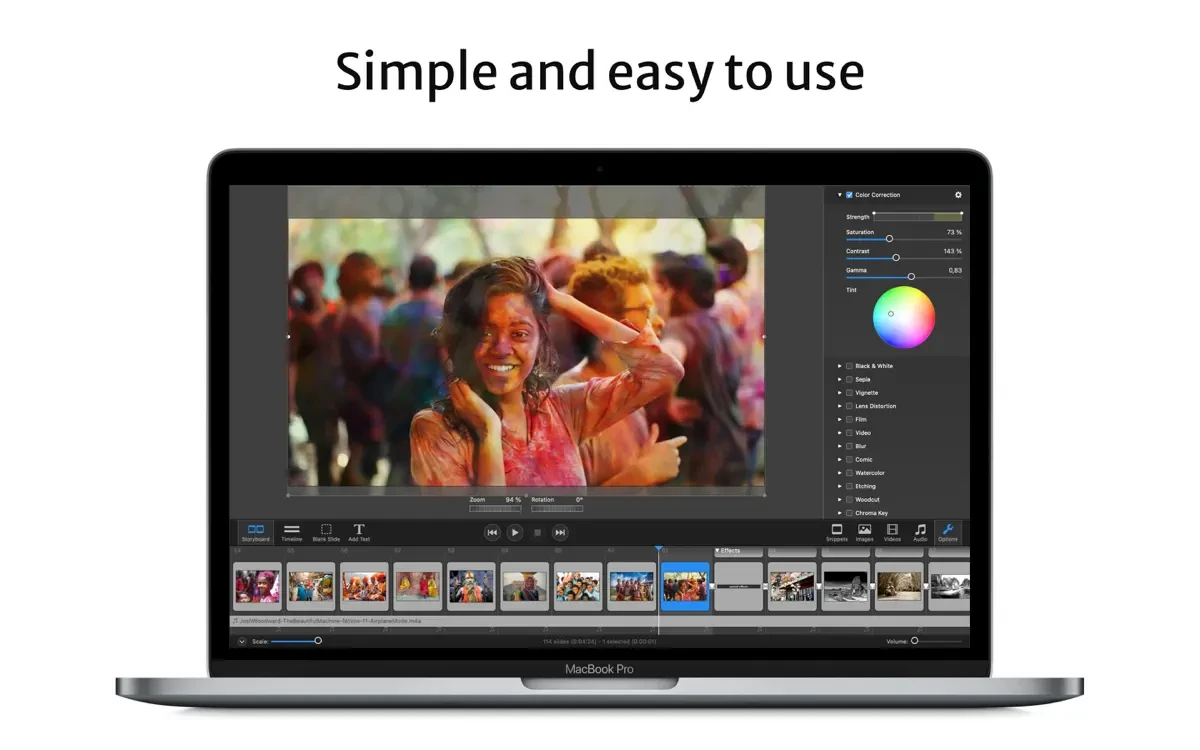
Additional player capabilities allow you to limit the duration or number of times your slideshow can be viewed, providing added control over your content. FotoMagico allows exporting slideshows as screensavers and applying watermarks to your images. There’s now convenient slideshow export support for Apple iPad. You can also install plugins for Apple Final Cut and Apple Aperture, further expanding fotomagico app integrations. With just a couple of clicks, Boinx FotoMagico lets you craft professional-grade slideshows accompanied by a perfectly synced audio background.
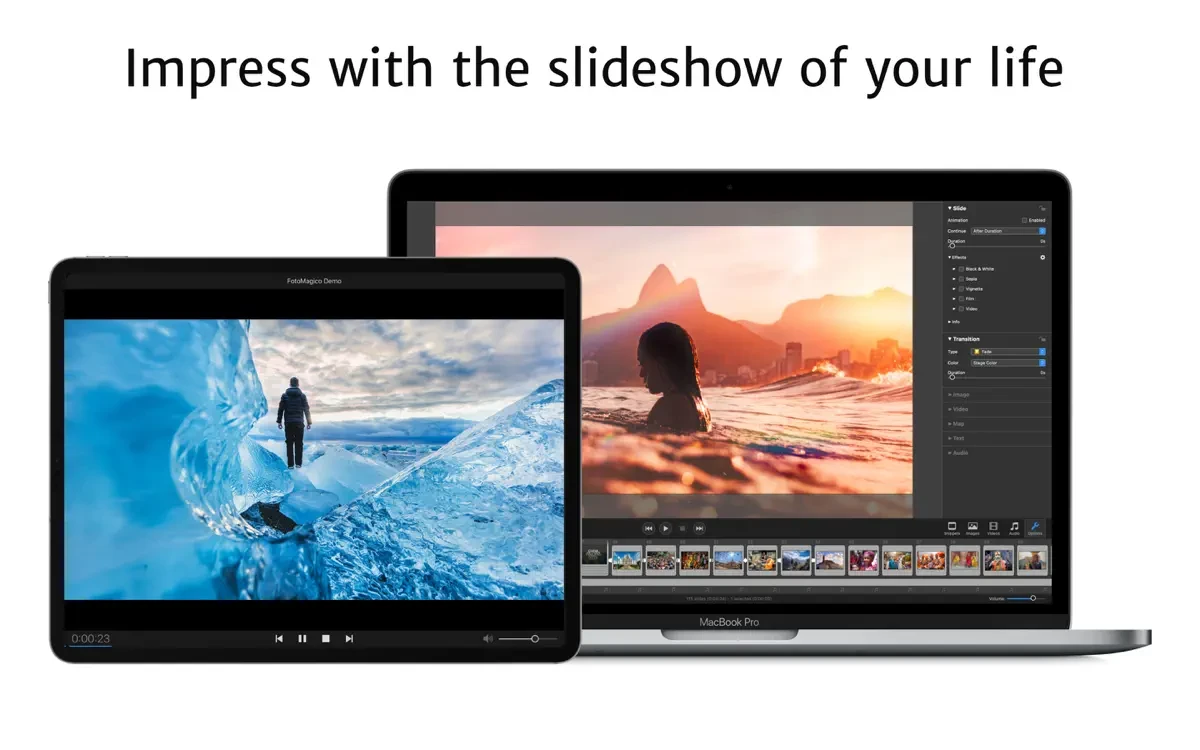
Impress your audience with the slideshow of your life! FotoMagico 6 harmonizes your workflow across both desktop and laptop experiences since it runs seamlessly on both Mac and iPad. For the first time, work and play back your slideshows on your favorite devices wherever and whenever you want. Store your projects on iCloud Drive for effortless, secure project syncing across all your Apple devices.
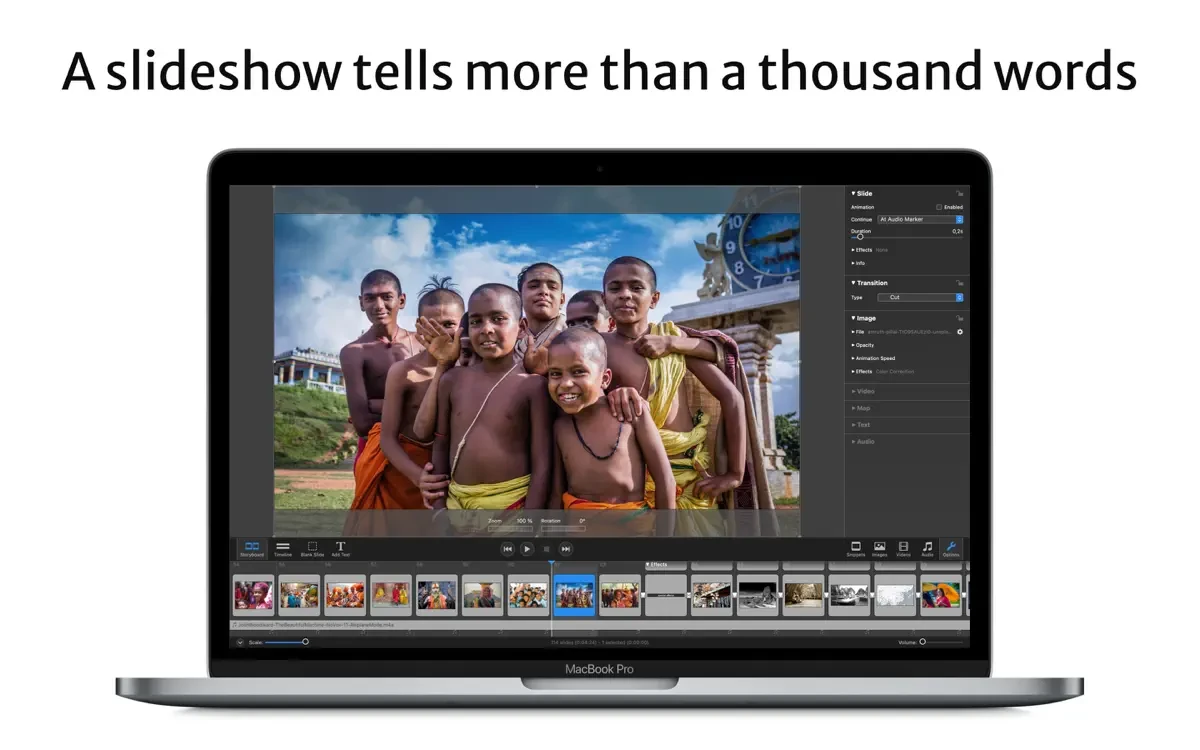
Key features include: resizing, moving, rotating, zooming, and merging images; stunning transitions between slides; overlaying custom text captions; utilizing the highest display resolution your hardware supports; compatibility with large screens, HDTVs, and other high-resolution displays; the ability to burn slideshows to DVD using iDVD or Roxio Toast; exporting for iPod; and saving slideshows to any QuickTime-compatible format.
The all-new FotoMagico 6 is fully optimized for Apple Silicon Macs, running smoothly using the latest Apple technologies such as Metal, Swift, and Swift UI. FotoMagico is the gold standard for slideshows on Mac, setting a new benchmark for creativity and performance.
Frequently Asked Questions
You May Also Like
Reviews & Comments
No comments yet. Be the first to share your thoughts!