
MP3 Gain
Description
MP3 Gain for Mac is a straightforward and efficient tool, expertly designed to help you adjust and normalize the volume level of your audio files—whether they're in mp3, wma, or other popular formats. This mp3 gain app automatically corrects the volume of your tracks and normalizes audio without any loss of quality. Using statistical analysis, MP3 Gain determines how loud a file actually sounds to the human ear, ensuring natural results every time.
While many programs offer basic sound adjustment, MP3 Gain for Mac enhances this feature to stand alone. With this mp3 gain mac tool, users can easily fine-tune audio loudness and achieve the perfect listening volume through the simplest steps and the fastest operating mode. This is a fundamental feature that every user needs, and MP3 Gain does not overlook its importance.
To streamline your experience and eliminate any concerns about usage or editing, the mp3 gain app presents a minimalist workspace. Additionally, MP3 Gain is compact, lightweight, and delivers ultra-fast processing, ensuring it never burdens your Mac, no matter how many files you manage at once.
During volume adjustment, it is crucial not to degrade the audio quality or introduce unwanted noise. MP3 Gain strictly adheres to the EBU R128 loudness normalization standard, allowing you to adjust volume while meeting the highest audio industry benchmarks in your mp3 gain download.
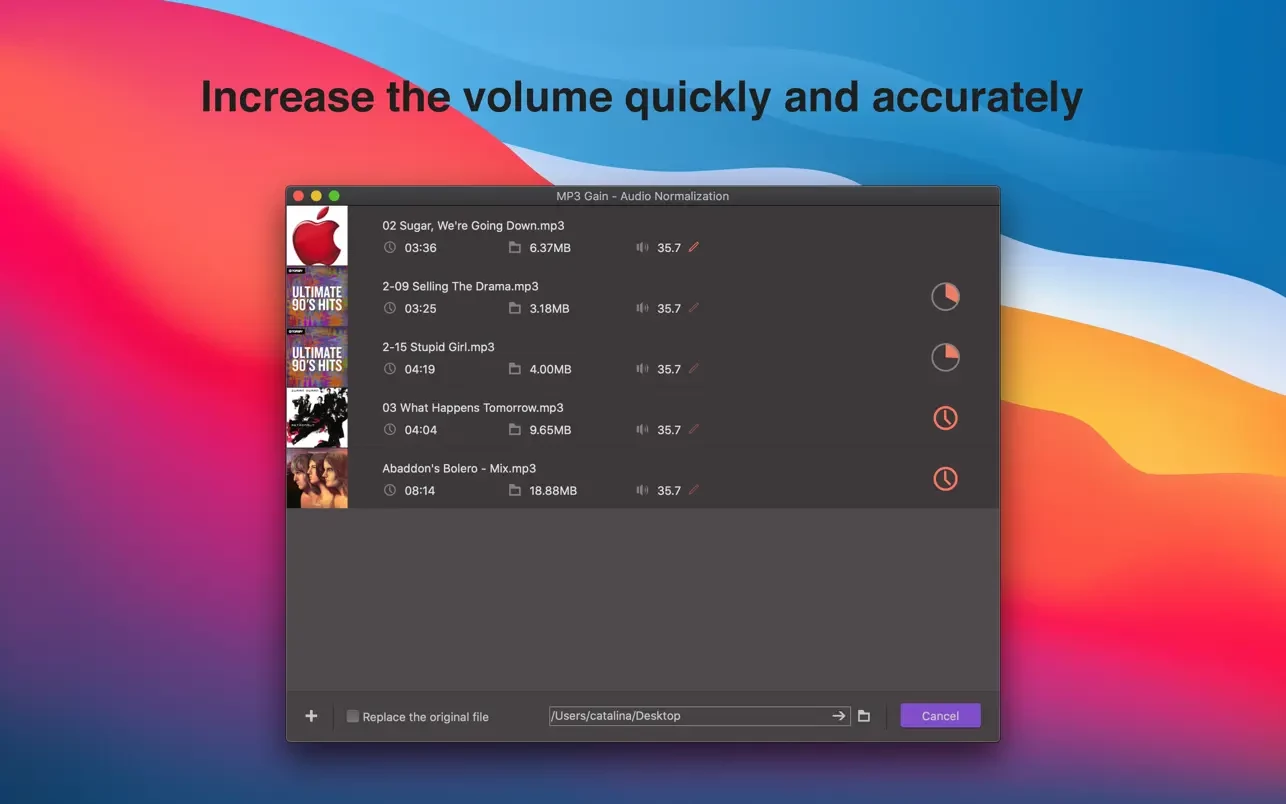
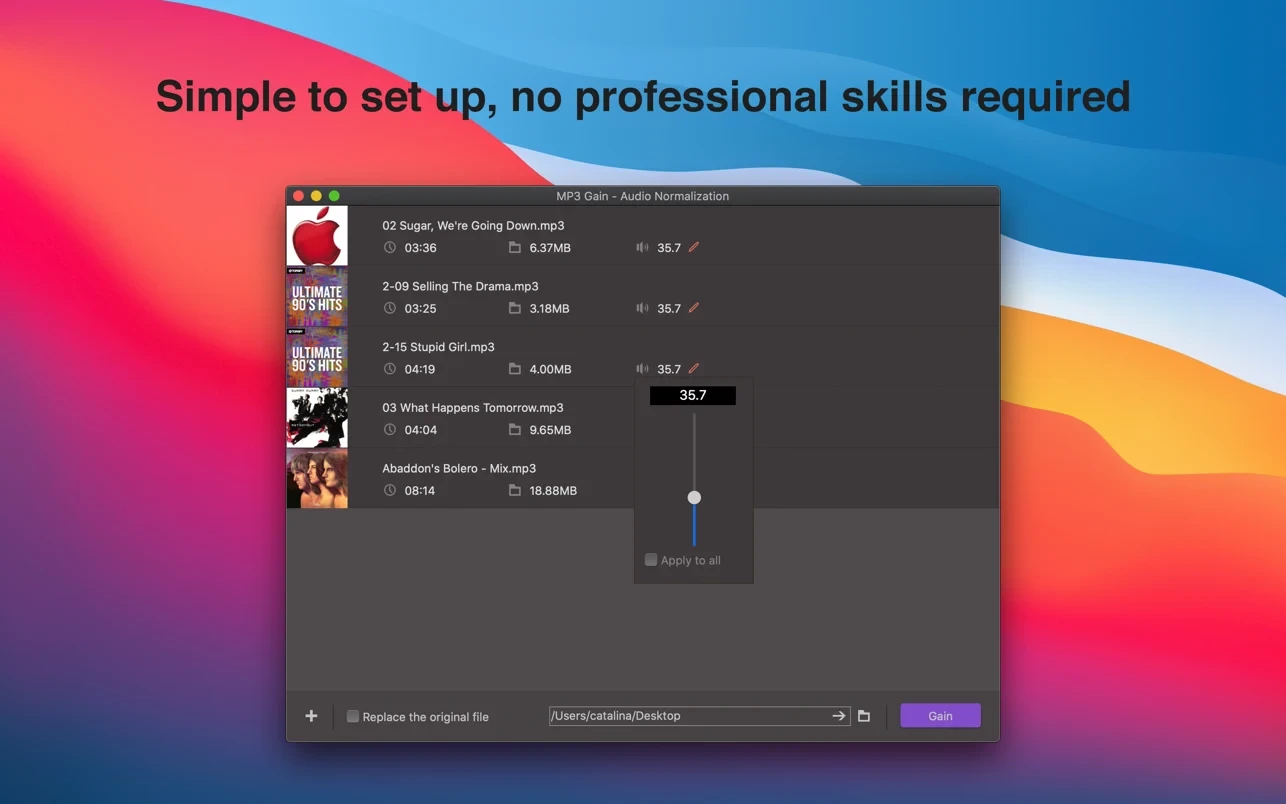
Do you have a huge audio library and need a time-saving editing solution? MP3 Gain tackles this issue directly—just drag all the files you want to process onto the main interface. You can set volume parameters and adjust all files at once with one click, and the mp3 gain app doesn't limit the number of files subscribers can process.
File size and volume information are clearly displayed in the main interface. If you need to delete incorrect or oversized audio files while processing, you can simply browse and directly remove them through the same organized workspace, keeping your library tidy.
Wondering if you can quickly save files after batch processing or replace original files? With MP3 Gain for Mac, you absolutely can. Select your desired file destination using the folder icon at the bottom of the interface and check “Replace Original File” to automatically store the processed track in the correct spot with just a single click.
Not experienced with audio editing? Worried about the learning curve? Don’t be. The intuitive interface of MP3 Gain offers users a one-step wizard for adjusting file volume—just follow the clear instructions provided by the software and enjoy seamless results on your Mac.
Frequently Asked Questions
You May Also Like
Reviews & Comments
No comments yet. Be the first to share your thoughts!