ProFind
Description
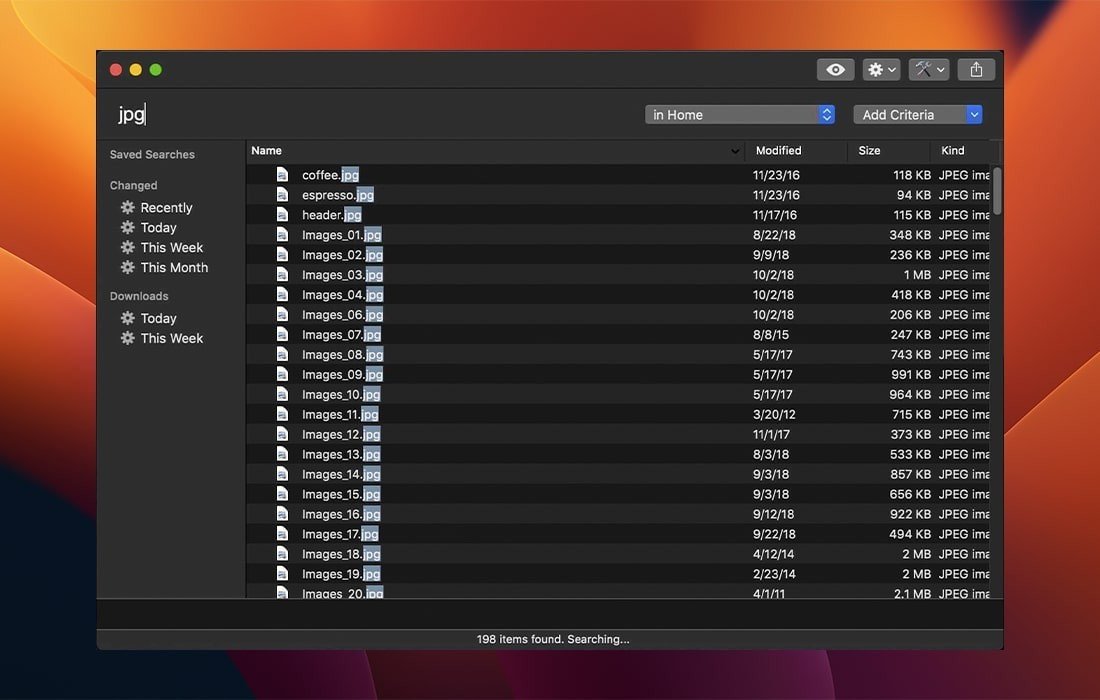
ProFind is an advanced file search application purpose-built for macOS. With its extensive capabilities and excellent performance, it delivers a truly enhanced file search experience. ProFind empowers users to locate any file with advanced natural language search queries, app launching, stealth location searching, scripting support, and much more right from your Mac desktop.
Enjoy the power to search inside invisible folders and app bundles, and scan any disk type. ProFind takes advantage of kernel-based search (searchfs) if available, and can also utilize metadata indices used by Spotlight to optimize speed and efficiency. Benefit from autocompletion for application names and a large icon view tailored for one or two search results. Thanks to its streamlined interface, ProFind effortlessly combines all file search features of macOS, ensuring you reliably locate every file you need. The app is meticulously tuned for both outstanding performance and instant responsiveness.
Full Feature List
- Natural language search queries support.
- Unlimited search results for all your needs.
- Find files inside invisible folders and package bundles.
- Compatible with all disk types: Mac, Windows, servers, and others.
- Supported search locations: user home, Mac disks, local disks, servers, individual volumes, open Finder folders.
- Save searches and keep detailed search history.
- Search by: name, created date, modified date, file extensions, tags, parent folders, kind, regular expressions, wildcards, and Spotlight metadata.
- Exclude terms from search results.
- Hashes: md4, md5, sha1, sha224, sha256, sha384, sha512 (displays additional metadata).
- Autocomplete for app names, command names, and keywords.
- Full, unshaded path display with highlighted path differences.
- Large icon view for single or dual result searches.
- Spatial disk browsing (remembers window positions, size, scroll position).
- Support for running shell scripts and AppleScripts on found items.
- Highlights all matched words in your search.
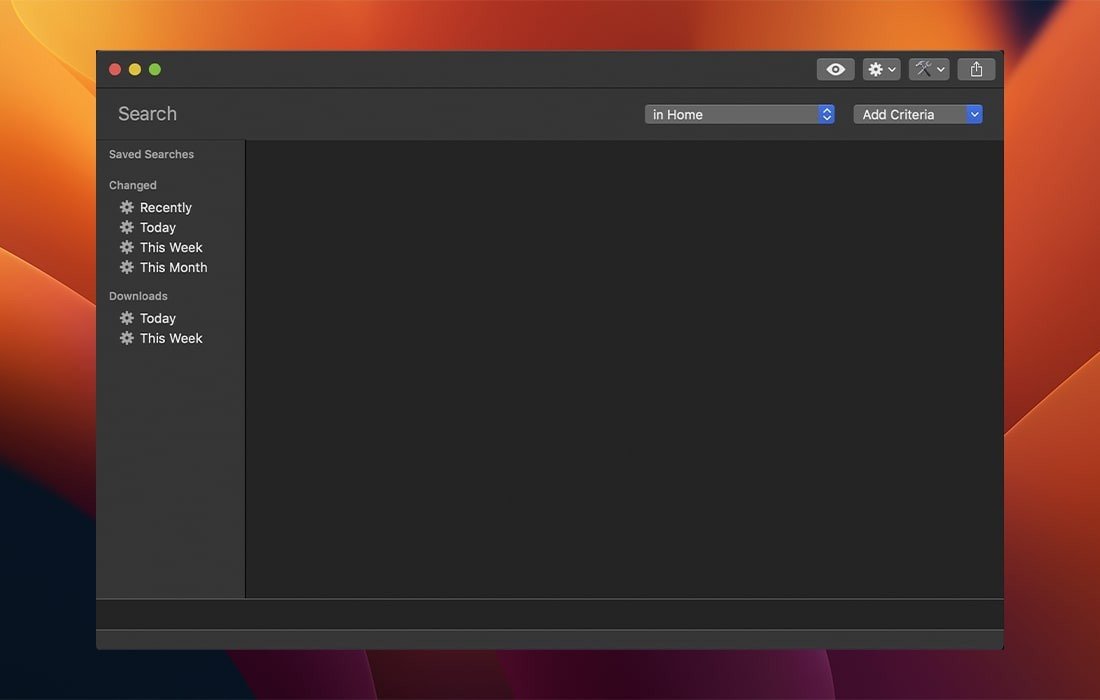
- Sidebar includes saved searches, search history, favorites, recents, integrated recent downloads search, and recently changed files.
- Contextual menus: Share, Services, Open, Show in Finder, Get Info, Copy Path.
- Instant access to favorite folders.
- QuickLook previews.
- Fully supports dark mode (macOS 10.14 Mojave and above).
- Drag out files from within the app.
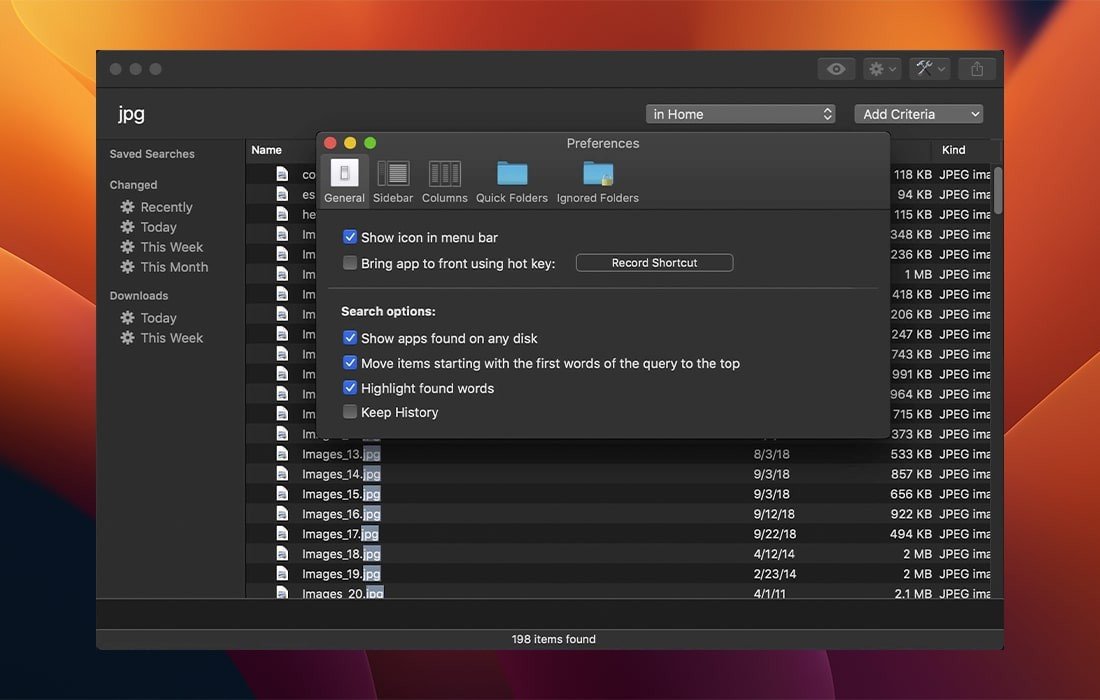
- Optional menu bar icon, easily toggled as needed.
- System-wide fully customizable hotkey support.
- Built-in command reference for streamlined workflow.
ProFind unifies all search strengths of macOS into one profind app, whether you want a convenient profind download or need an everyday profind mac solution. Every feature is crafted with Mac users in mind, bringing together advanced technology and user-focused design.
Frequently Asked Questions
You May Also Like
Reviews & Comments
No comments yet. Be the first to share your thoughts!